
We've already written about running Claude Code in a terminal from your iPhone. This post covers the other way to do it. Instead of typing into a terminal on a six-inch screen, you hand the work to an agent on your Mac and step in only when it needs you: to start it, to approve something, and to review what it did. Here's that loop, step by step, in the SeaSalt iPhone app.
Before you start
You need:
- The SeaSalt Mac app running and signed in on a Mac with macOS 15 or later.
- The iPhone app on iOS 18 or later, signed in with the same account and paired with your Mac. Pairing shows a 6-digit code on both devices; confirm they match.
- An agent for the project, pointed at the project's folder. You can create one on the iPhone with New Agent.
- A coding executor chosen on your Mac: Claude Code, Codex, or Devin CLI. Work Sessions run with whichever one you pick.
1. Find the agent
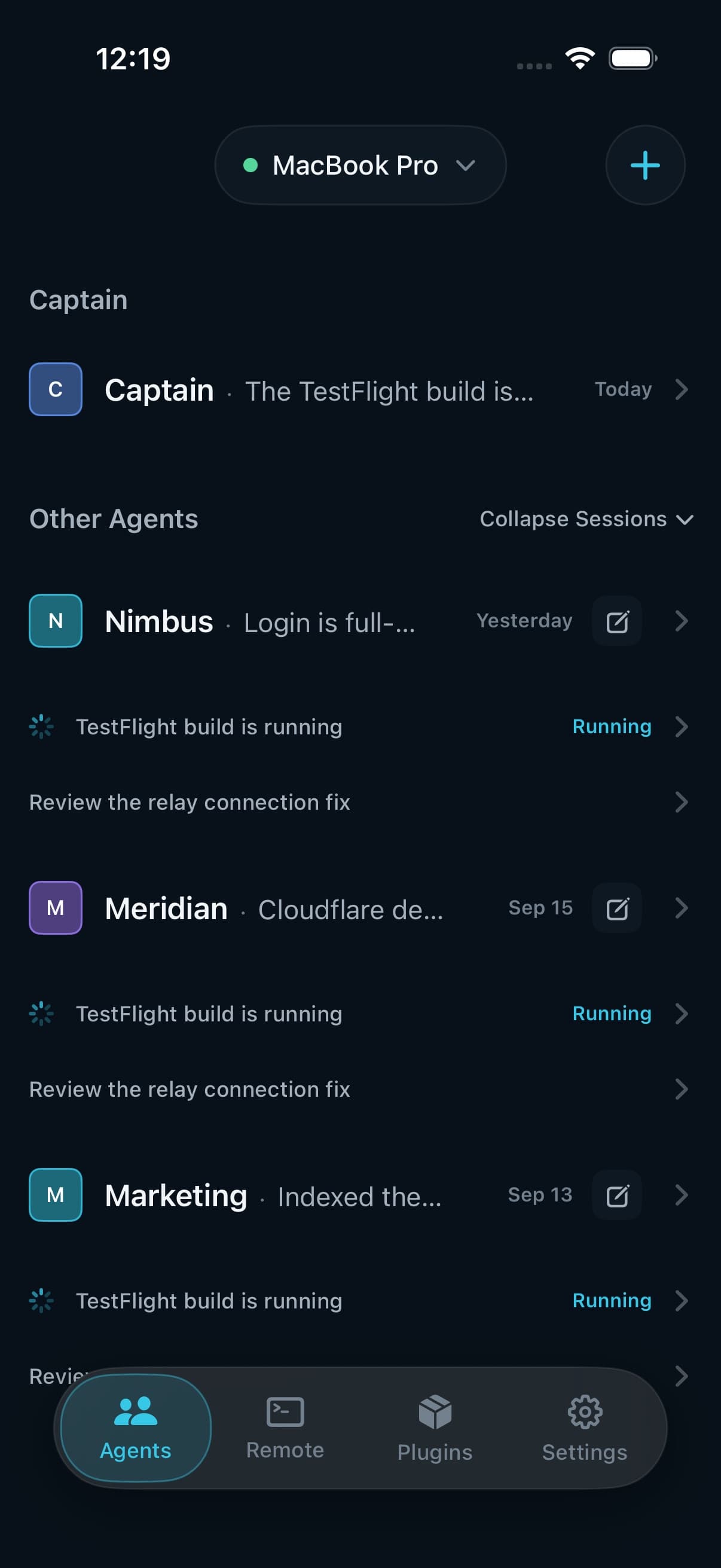
Open the Agents tab. The Captain is at the top, and each project agent is listed below it with its active Work Sessions underneath. Each row has a status: Working, Awaiting approval, or Unread message. The Mac picker at the top switches between paired Macs.
2. Start a Work Session
There are two ways to start one.
Ask the agent. Open its conversation and describe the job: "Stripe webhooks are being retried on 4xx responses. Find out why, fix it, and add a test." The agent knows the project's instructions and context, so it can turn that into a Work Session with the right brief.
Start one yourself. Use the new-session button on the agent to start a Work Session directly when you already know exactly what you want.
Either way, write the request as a job with a finish line. "Look into webhooks" leaves the agent guessing. "Make the retry test pass and tell me what caused it" tells it when it's done.
Choose how much the session can do without asking. The default comes from your Mac's settings, and the composer's Permissions menu changes it for one session. With Claude Code the options are Ask for approval, Allow edits, Auto, and Full access. With Codex they are Workspace only, Ask for approval, and Full access. For work you're not watching, the stricter modes are the right place to start.
3. Put the phone away
The session runs on your Mac, in the project folder, with your tools. Your phone doesn't have to stay open.
SeaSalt sends a push notification when a session's turn completes or fails, when an agent replies, and when something needs your approval. Notifications other than approvals are held while you're active at your Mac, so your phone doesn't buzz about work you're watching.
4. Answer an approval
In an approval mode, the agent stops before doing something outside its permissions and asks. The request goes to your Mac first. It reaches your phone once you've left the Mac, or after two minutes without an answer.
You can answer from the notification itself with Allow Once or Deny. In the app, the approval card shows Approval needed, what the agent wants to do (a command is shown in full, in monospace), and the details. You get three buttons:
- Allow Once: just this action.
- Always Allow: this kind of action for the rest of this Work Session.
- Deny: the action doesn't run.
Whichever device answers first wins. An unanswered request expires after five minutes and counts as denied, so a missed notification never turns into a silent yes.
Plugin actions work the same way. If you've set a plugin's "changes data" actions to Ask, a session that wants to create a Linear issue stops and asks you first.
5. Review what it did
Open the session. You'll see how long it worked, the steps it took (files read, files edited, commands run), and its summary of the result.
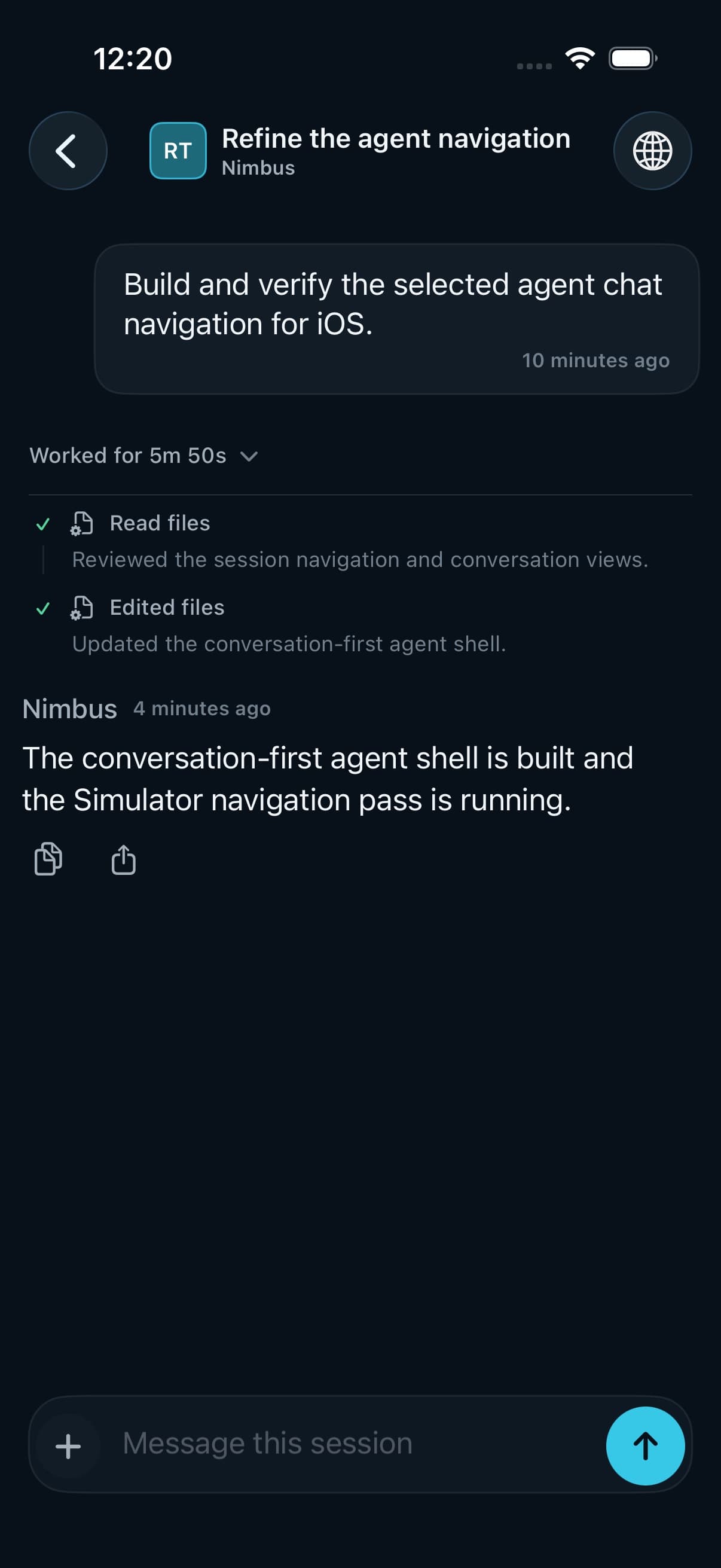
Below that, Changed files lists every file the session touched, with diffs. If the work involved a web page, such as a local dev server or a dashboard the agent signed in to, open the workspace's Agent browser to see the page it was working in.
6. Follow up, or take over
If the result is close but not right, reply in the same session: "Also handle the 409 case." The session keeps its context, so follow-ups are cheap. If you need to look for yourself, the Remote tab gives you Terminal, Files, and Desktop on the same Mac, all end-to-end encrypted between your phone and your Mac.
What's still better at your desk
A phone is good for starting work, unblocking it, and judging whether it went the right way. It's a poor place to review a 600-line diff. Treat phone review as triage: approve the direction, send corrections, and do the careful read before you merge. Sessions edit your project folder directly, so commit or stash anything you care about before handing a project to an agent while you're away.
The point isn't to code on your phone. It's that the time between "the agent needs one answer" and "you gave it" no longer depends on being at your desk.
macOS 15+ · iOS 18+